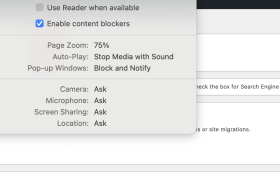
If you manage WordPress websites and use Safari, you may have encountered a frustrating issue: you reset the zoom level in the WordPress admin to Actual Size (100%), everything looks normal for a moment — and then, after a second or two, the page automatically zooms in again.
At first glance, this feels like a WordPress bug. In reality, it’s a Safari-specific behavior, and it happens more often than you’d expect.
In this article, I’ll explain why this happens and provide practical, proven solutions.
What Exactly Is the Problem?
The typical scenario looks like this:
- You accidentally zoom in on the WordPress admin using Safari
- You reset zoom via View → Actual Size
- The admin briefly returns to normal
- Safari automatically re-applies the zoom level after 1–2 seconds
This usually affects WordPress admin pages (/wp-admin), the Gutenberg editor, plugin settings pages, and admin screens with dynamic layouts.
Why This Happens (It’s Not WordPress)
This behavior is caused by Safari’s per-site zoom memory, combined with accessibility-related features such as Smart Zoom or Hover Text.
Safari stores zoom settings per website, not per tab. When WordPress admin reloads or dynamically updates the page, Safari often re-applies the stored zoom automatically — even if you manually reset it.
In short: WordPress is not the problem. Safari is overriding your choice.
Solution 1: Reset Safari Zoom for That Website
This resolves the issue in most cases.
Open Safari, go to Safari → Settings → Websites, select Page Zoom, find your website domain, and set it to 100% or remove it entirely. Close the WordPress admin tab and open it again.
Safari will stop forcing the zoom level for that site.
Solution 2: Check Accessibility Zoom Settings
Safari may automatically zoom due to macOS accessibility options.
Go to System Settings → Accessibility → Zoom and disable “Use scroll gesture with modifier keys to zoom” and “Hover Text” if it is enabled. Restart Safari after making changes.
Solution 3: Clear Website Data for That Domain
If the zoom still resets, open Safari → Settings → Privacy, click Manage Website Data, search for your domain, and remove it.
This clears cached site preferences, including zoom behavior. You will need to log in to WordPress again.
Temporary Workarounds
If you need an immediate fix while working, open WordPress admin in Chrome or Firefox, or use a Safari Private Window. Zoom settings are not persisted in private mode.
Why This Bug Is Common in WordPress Admin
WordPress admin pages use dynamic layouts, load content asynchronously, and frequently update the DOM structure. Safari sometimes interprets these changes as a signal to restore saved view settings, including zoom.
That’s why this issue rarely appears on static websites but frequently affects admin panels and editors.
Leave a Reply